How Does a Website Load in Your Browser?
You type a web address and — boom — a page appears. But a lot happens in those milliseconds. Let’s walk through every step, plain and simple.
Every time you open a website — Google, YouTube, your bank — your browser silently completes a multi-step mission. It finds the right computer on the internet, shakes hands with it, asks for files, and then turns all those files into the visual page you see. Let’s go through it one step at a time.
The 6 Steps of Loading a Website
Use the buttons below to explore each step. Click through them in order — each one builds on the last.
⌨️ Step 1: You Type a URL
You type something like https://wewillexplain.com into your browser’s address bar and press Enter. That address is called a URLURL stands for Uniform Resource Locator. It’s the full “address” of a page on the internet — like a postal address, but for websites..
The browser looks at the URL and figures out three things: which protocolA protocol is a set of rules for how computers talk to each other. HTTPS is the secure web protocol. Think of it as the “language” your browser and the website agree to speak. to use (HTTPS), which website you want (wewillexplain.com), and which page you want (/articles, etc.).
📖 Step 2: DNS Lookup — Finding the Real Address
Your browser knows the website’s name (wewillexplain.com), but the internet doesn’t use names — it uses numbers called IP addressesAn IP address is a unique number assigned to every device on the internet — like 142.250.190.46. It’s how computers actually find each other. The name (like google.com) is just a human-friendly alias..
So your browser asks a DNS serverDNS stands for Domain Name System. It’s like the internet’s phone book. You give it a name (wewillexplain.com) and it gives you back the IP address (the actual number) of the server where that site lives.: “What is the IP address for wewillexplain.com?” The DNS server replies with a number like 104.21.55.82.
This happens in milliseconds — and your computer often caches (remembers) the answer so it doesn’t have to ask again every time.
🤝 Step 3: TCP Connection — Opening a Line
Now your browser knows the IP address. Before it can request anything, it needs to establish a connection with that server. This uses a system called TCPTCP stands for Transmission Control Protocol. It’s a set of rules that makes sure data arrives completely and in the right order — like a reliable postal service that confirms every package was delivered..
TCP uses a three-step process called the three-way handshake:
- SYN — Your browser: “Hey server, can we talk?”
- SYN-ACK — Server: “Yes! I’m here and ready.”
- ACK — Your browser: “Great, let’s go!”
Only after this handshake does the real conversation begin.
🔒 Step 4: HTTPS — The Secure Handshake
Most modern websites use HTTPSHTTPS stands for HyperText Transfer Protocol Secure. The “S” means all communication between your browser and the website is encrypted — scrambled so nobody else can read it. That little padlock in your browser shows it’s working. — notice the 🔒 padlock in the address bar? That means the connection is encrypted.
Before data flows, your browser and the server do a quick security check called a TLS handshakeTLS (Transport Layer Security) is the technology that encrypts your connection. During the TLS handshake, your browser and the server exchange digital “keys” so they can scramble and unscramble messages — like agreeing on a secret code before speaking.. They agree on encryption keys — secret codes that scramble all your data so nobody in the middle can read it.
📨 Step 5: The HTTP Request & Response
The connection is open and secure. Now your browser sends an HTTP requestAn HTTP request is a message your browser sends to a server asking for something — usually a webpage file. It’s like saying “please give me the file at /articles” and the server replies with the actual file contents. to the server. It basically says: “Please send me the HTML file for your homepage.”
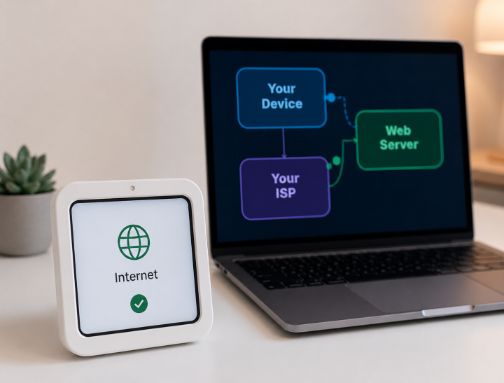
The web serverA web server is a computer (usually in a data centre) that stores website files and sends them to browsers that request them. Popular web server software includes Apache and Nginx. receives this, finds the right files, and sends back an HTTP response — the actual HTML code of the page, plus links to CSS, JavaScript, and image files.
This whole back-and-forth takes just milliseconds over fast connections.
🎨 Step 6: The Browser Renders the Page
Your browser now has the HTML file. It reads it top to bottom, building a mental model of the page called the DOMDOM stands for Document Object Model. It’s the browser’s internal “tree” structure of a webpage — every heading, paragraph, image, and button is a “node” in this tree. JavaScript can change the DOM to update what you see without reloading the whole page.. Whenever it finds a linked file (a CSSCSS (Cascading Style Sheets) tells the browser how things should look — colours, fonts, spacing, layout. Without CSS, every website would just be plain black text on a white background. stylesheet or a JavaScriptJavaScript is a programming language that runs inside your browser. It makes pages interactive — dropdown menus, animations, form validation, live search suggestions. Without JavaScript, websites would be static, click-only documents. file), it fetches that too.
Finally, it combines the HTML structure, the CSS styling, and the JavaScript behaviour to paint the page on your screen. This process is called rendering.
The Full Journey at a Glance
Here’s the entire process mapped out. Every website visit follows this path.
Why that padlock matters
When you see HTTPS (and the 🔒 padlock) in the address bar, it means all data between your browser and the website is encrypted. Nobody — not your internet provider, not someone on the same Wi-Fi — can read what you send or receive. Always look for HTTPS before entering passwords or payment details.
How a Browser Builds the Page
Once the files arrive, your browser “paints” the page in layers. Click each stage to see how it works:
Click a stage to see how the browser builds the page
What Can Slow a Page Down?
Most delays happen at specific points in the loading process. Here’s where things go wrong:
Frequently Asked Questions
HTTP (HyperText Transfer Protocol) sends data as plain text — anyone on the same network can read it. HTTPS adds the “S” for Secure, which means all data is encrypted using TLS/SSL. This prevents hackers, your ISP, or anyone else from spying on what you’re doing. Always look for the 🔒 padlock before entering passwords or credit card details.
Speed depends on several factors: Server location (closer = faster), file sizes (optimised images/scripts load quicker), number of requests (fewer files = less back-and-forth), caching (saved copies load instantly), and CDN usage (servers near you). Big websites like Google spend millions making sure everything loads in milliseconds.
Caching is temporarily storing files on your device so they don’t need to be downloaded again. For example, after you visit a website, your browser saves images, CSS, and JavaScript locally. The next time you visit, it loads those from your hard drive instead of the internet — much faster! That’s why returning to a site often feels instant.
The core process is identical — DNS lookup, TCP connection, HTTPS handshake, requests, and rendering happen the same way. However, phones may have slower network connections (4G/5G vs WiFi), less powerful processors, and often request mobile-optimised versions of websites that are smaller and lighter. Modern websites detect your device and send appropriately sized files.
With HTTPS, the content of your communication is encrypted — so no one can see what you type or read on a website. However, your ISP can still see the domain names you visit (e.g., “facebook.com” but not “/messages/123”). To hide even the domain names, you would need a VPN (Virtual Private Network) or Tor Browser.
A CDN (Content Delivery Network) is a network of servers spread across the globe. Instead of everyone loading from one server in (say) the USA, the CDN copies your website’s files to servers in Europe, Asia, Australia, etc. You’re automatically connected to the nearest server. This reduces loading times from seconds to milliseconds for people far from the main server. Most major websites (Netflix, Amazon, Reddit) use CDNs.
This is called “white screen of death” or FOUT (Flash of Unstyled Content). It happens when the browser waits for a large CSS or JavaScript file before showing anything. Some developers “inline” critical CSS (put it directly in the HTML) so the page can render basic content immediately. If you see this often on a site, it usually means poor optimisation — the browser is waiting unnecessarily.
Yes! All modern browsers have Developer Tools (press F12). Go to the Network tab and reload the page. You’ll see every single request: how long DNS took, how long the server responded, and which files are slow. The Performance tab shows an even more detailed timeline. For a simple test, try Google PageSpeed Insights — it analyses any website and tells you exactly what’s slow.
🧠 Quick Recap — What just happened?
- You typed a URL — the browser reads the address and gets to work.
- DNS lookup — converts the domain name into a numerical IP address.
- TCP connection — browser and server agree to communicate via a 3-way handshake.
- TLS handshake — both sides agree on encryption keys for a secure channel.
- HTTP request/response — browser asks for files; server sends them back.
- Rendering — browser assembles HTML + CSS + JavaScript + images into the page you see.
All of this happens in the blink of an eye — usually under a second. Pretty remarkable for a journey that spans the globe! 🌍