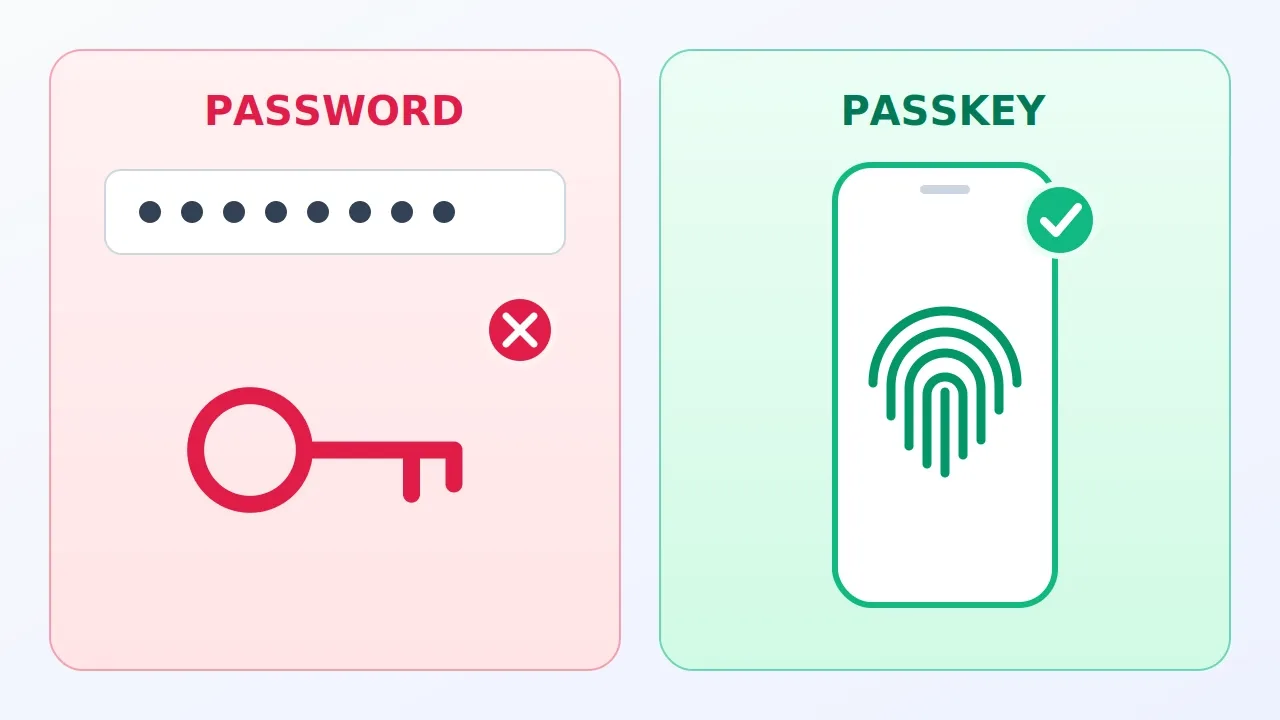
Think about the last time you forgot a password. You tapped "Forgot password?", waited for an email, made up a new one, and forgot that one too. Passwords are an idea from the 1960s, and they fail us in two ways: they are annoying for us, and they are useful to criminals. A passkey fixes both.
The quick answer: a passkey lets you sign in with the same fingerprint, face scan or PIN you use to unlock your phone. There is nothing to type or remember, and nothing a scammer can trick you into handing over. It takes about a minute to set up on each account.
Why passwords keep failing
A password is a secret that you share with a website. That one sentence explains most of the trouble, because anything shared can be copied, guessed or stolen. Here is how it goes wrong:
- We reuse them. Remembering a different password for every account is nearly impossible, so we use the same one in many places. When one site is hacked, criminals try that password on your email and bank too.
- We make them weak. Short, familiar passwords (a name, a birthday, "123456") are easy for software to guess.
- Websites get hacked. A company can guard your password carefully and still lose it. Stolen passwords are often sold and tried on other sites.
- We get tricked. Phishing is a fake email, text or website that looks real and asks you to sign in. Type your password into it, and the criminal now has it. Even careful people get caught, because the fakes can look perfect.
The core problem: with a password, the secret travels. You type it, it crosses the internet, and the website checks it. Every step is a chance for someone to grab it. A passkey is built so the secret never travels at all.
What a passkey is
A passkey is a way of proving who you are without sharing a secret. It is saved on your device (phone, laptop or tablet) and unlocked with whatever you already use to unlock that device.
Think of a padlock and its key. When you create a passkey, your device makes a matching pair:
- The padlock (public key) goes to the website. Anyone can see it, but all it can do is check your proof. It cannot open your account.
- The key (private key) stays on your device and never leaves it. It is the only thing that can prove it is really you.
The website never sees your key, so there is nothing worth stealing from the website.
How signing in works
You set a passkey up once. After that, every sign-in goes like this:
- You go to the site and choose to sign in. Your device offers your passkey.
- The site sends a random one-time puzzle.
- You confirm with your fingerprint, face or PIN. This lets your device use the key.
- Your device solves the puzzle with the key and sends back only the answer.
- The site checks the answer with the padlock. If it fits, you are in.
The puzzle is different every time, so a copy of an old answer is useless. A thief who recorded your last sign-in cannot replay it.
For the curious: the open standards behind this are called FIDO2 and WebAuthn. They are why passkeys work the same way on Apple, Google and Microsoft devices. You never need to know them to use a passkey.
Why it is safer
1. A fake website cannot trick you
This is the biggest win. A passkey is tied to the exact address of the site it was made for. If you land on a fake copy of your bank, your device simply does not offer the passkey, because the address is wrong. There is no password to type into the fake page, so there is nothing to steal. It works even when you are tired or rushed, because it does not depend on you spotting the scam.
2. A hacked website gives thieves nothing useful
If a site holding passwords is hacked, criminals get secrets they can try elsewhere. If a site holding passkeys is hacked, they get only padlocks, and a padlock cannot sign anyone in.
3. You cannot reuse or weaken it
Every passkey belongs to one site and is created by your device, so it is always long and random. There is no "123456" version, and one site's trouble cannot spread to another.
4. It is faster
Signing in takes a touch or a glance. There is no typing, no reset email and no code to copy. Safer and simpler together is rare in security.
Remember it this way: a password says "here is my secret, please check it." A passkey says "here is proof that I hold the secret, and I am not going to show it to you."
Your two biggest worries
"Does my fingerprint get uploaded?"
No. Your fingerprint or face scan only unlocks the key on your own device, exactly like it unlocks your phone. The website never receives it. No biometrics? Your screen PIN or pattern works too.
"What if I lose my phone?"
Most passkeys are backed up in scrambled form, so only you can open them. Get a new device, sign in to the same account, and they come back.
| Where the passkey is saved | If you lose your device |
|---|---|
| Apple (iCloud Keychain) | Sign in on a new Apple device and your passkeys return |
| Google Password Manager | Sign in to your Google account on a new device |
| A password manager (such as 1Password or Bitwarden) | Unlock your vault on a new device |
| A physical security key | Use your spare, so buy two |
Using a laptop that does not hold your passkey is fine too. The laptop shows a QR code, you scan it with your phone, and the phone confirms. The phone has to be nearby, which stops far-away attackers from using this route.
Passwords vs passkeys
| Question | Password | Passkey |
|---|---|---|
| Do I have to remember it? | Yes | No |
| Is a secret sent to the site? | Yes | No, only an answer |
| Can a fake site steal it? | Yes, if you are fooled | No, it only works on the real site |
| What does a hack of the site reveal? | Passwords to try elsewhere | Padlocks that open nothing |
| Works everywhere? | Yes | Not yet, but growing fast |
Set one up in five minutes
Menu names change from time to time, so look for "passkey" or "sign-in options" in your account's security settings.
- Start with your main email account. It is the key to resetting everything else, so protect it first.
- Find "Create a passkey" in the security settings of Google, Apple, Microsoft or any other site that offers it.
- Confirm with your fingerprint, face or PIN when your device asks.
- Check where it was saved. You want a synced place, such as iCloud Keychain, Google Password Manager or your password manager, so it is backed up.
- Test it. Sign out, then sign back in with the passkey.
Keep your old password for now, and make sure your recovery email and phone number are up to date. Then add more accounts over time: your bank, shopping sites and social media are good next steps.
What passkeys do not fix
Passkeys are a big improvement, not magic.
- Not every site offers them yet. Keep a password manager and unique passwords for the rest.
- Account recovery is the weak spot. If a site lets anyone reset an account with just an email or text message, a criminal may skip the passkey. Keep your recovery email and phone secure.
- Your phone lock matters. A passkey is only as safe as the way you unlock your device. Use a strong PIN and never share it.
- Harmful software on your device is still a risk. Keep your phone and computer updated.
- Public or shared computers. Never save a passkey on a computer other people use.
The short version
- Passwords fail because they are shared secrets that get reused, leaked and phished.
- A passkey is a padlock for the site and a key that stays on your device.
- Your fingerprint or face never leaves your device.
- Synced passkeys survive a lost phone.
- Start with your email, then add one account at a time.
A passkey does not ask you to be more careful, remember more, or spot every scam. It quietly removes the weakest link in online security: a person typing a secret into a box. Start today with the one account you would hate to lose.